Crews Overview
Crews are groups of anglers who share kelp and fish marks and publish field reports together. The Crew tab has three sub-sections: My Crews, Discover, and Messages.
My Crews
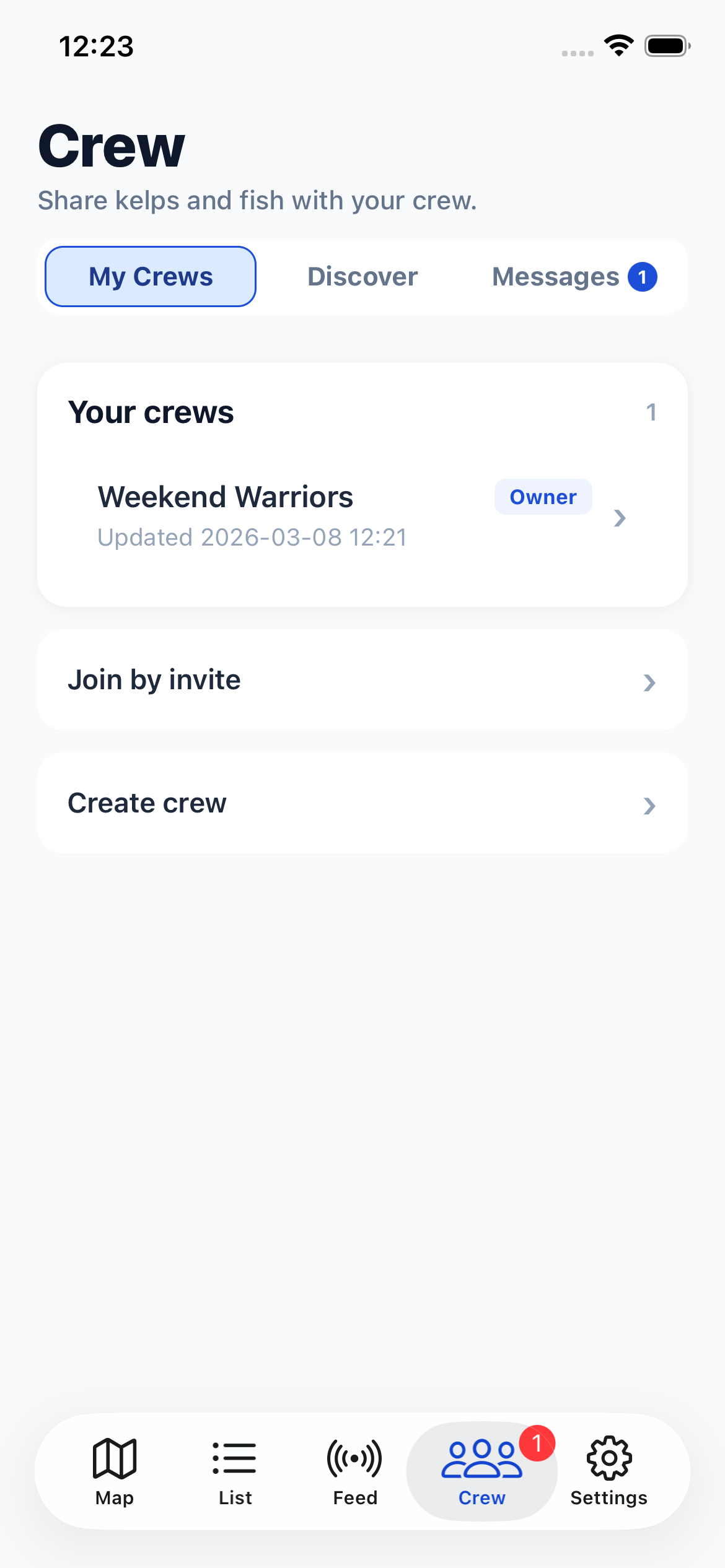
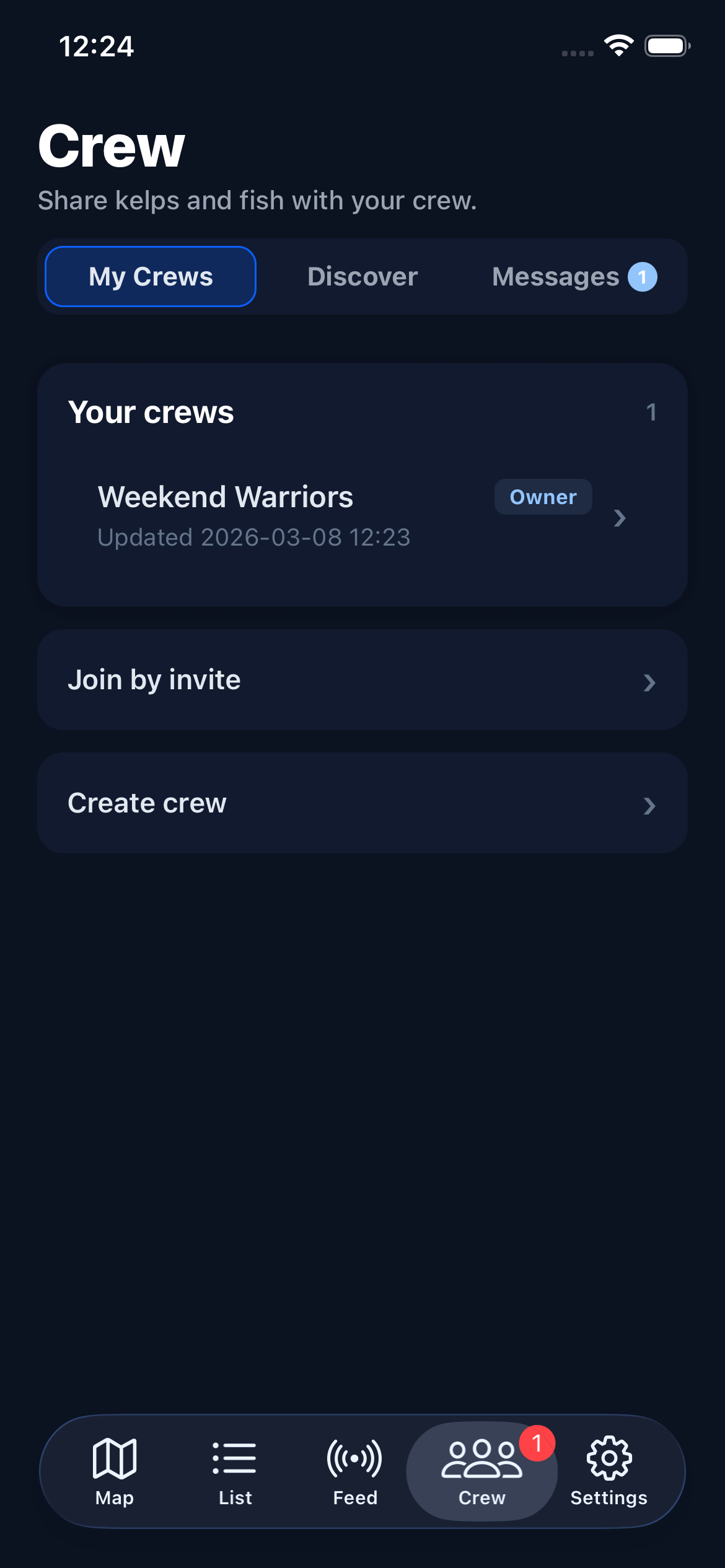
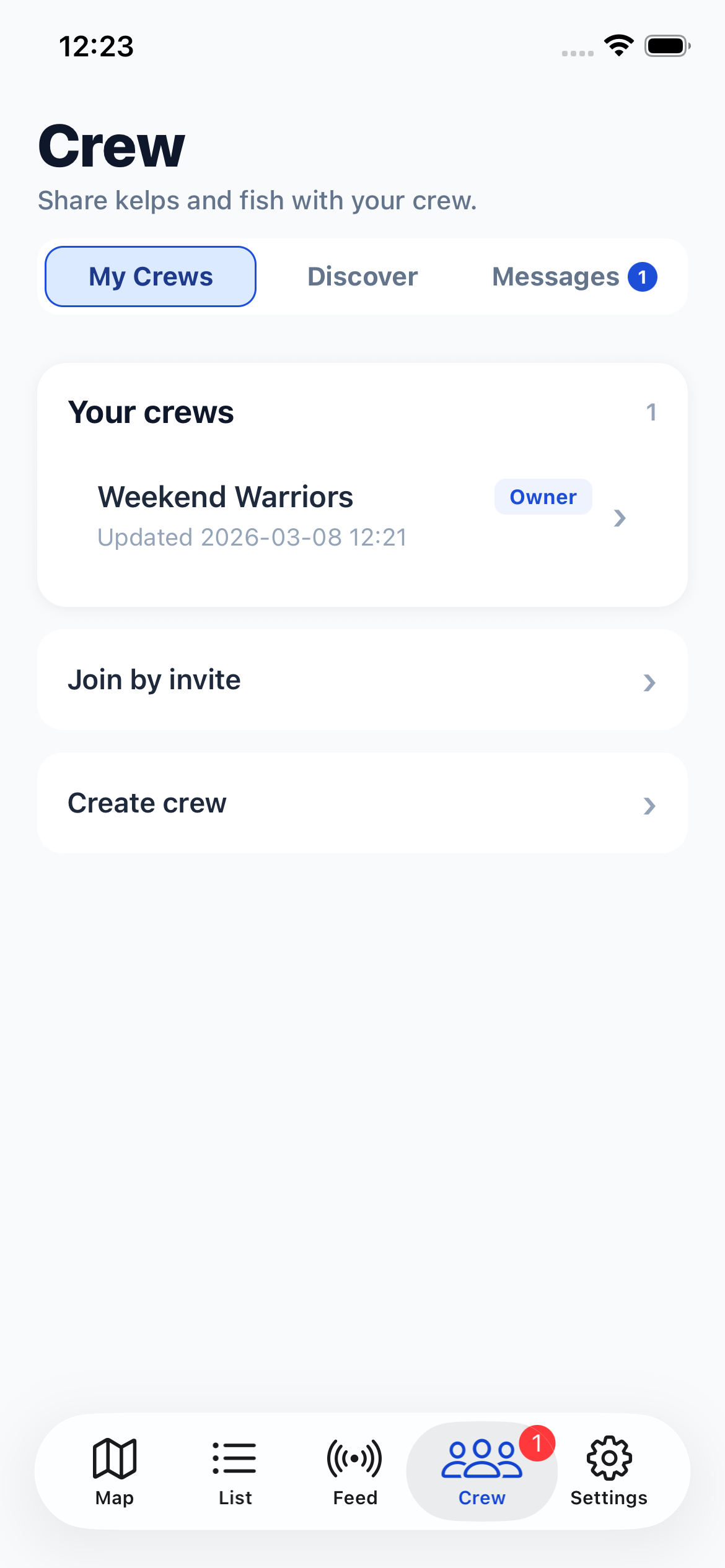
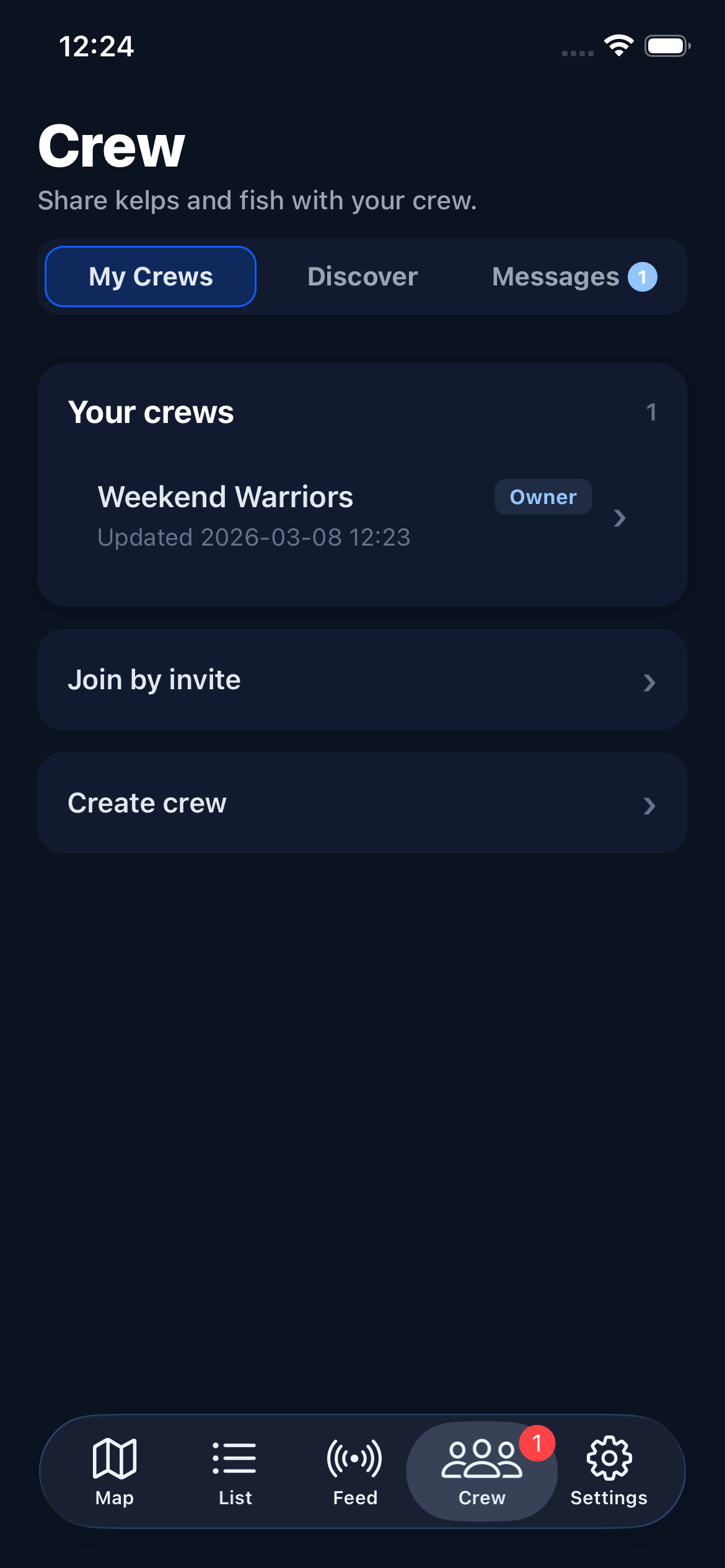
My Crews lists every crew you belong to. Each row shows the crew name, your role (Owner, Admin, or Member), and when marks were last updated. Tap a crew to view its details, members, and shared marks.
Swipe left on a crew to leave it, or delete it if you're the owner.
From this section you can also create a new crew or join one using an invite link. When creating a crew you choose a name, optional description, and geographic scope. You can also toggle "default sharing" so new marks you create are automatically shared with that crew. The number of crews you can create depends on your subscription tier.
If you're an admin or owner, pending join requests appear at the top of the list so you can approve or block new members.
Member permissions — owners and admins can set per-member permissions on each crew member: whether they can post reports and whether they can share marks. These are independent toggles visible in the member management screen.
Discover
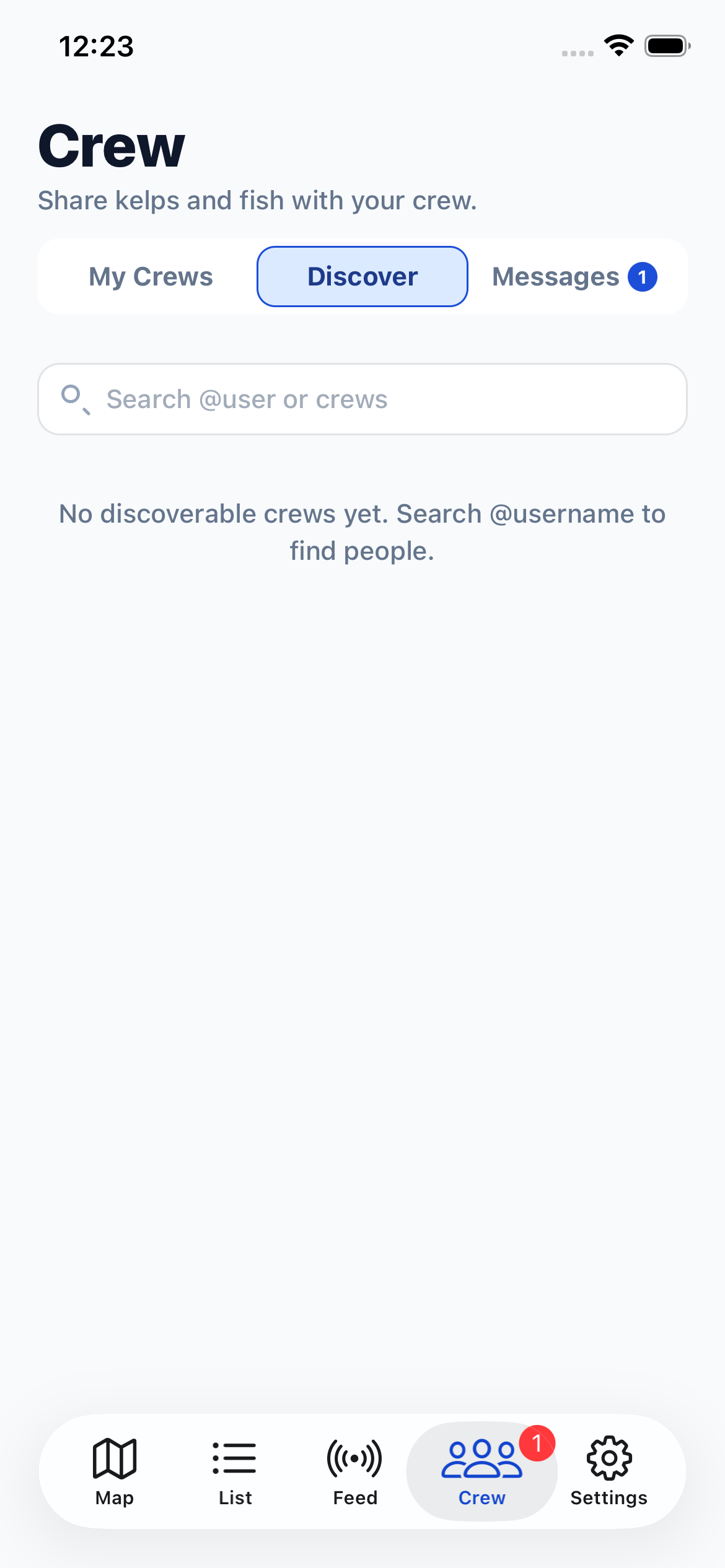
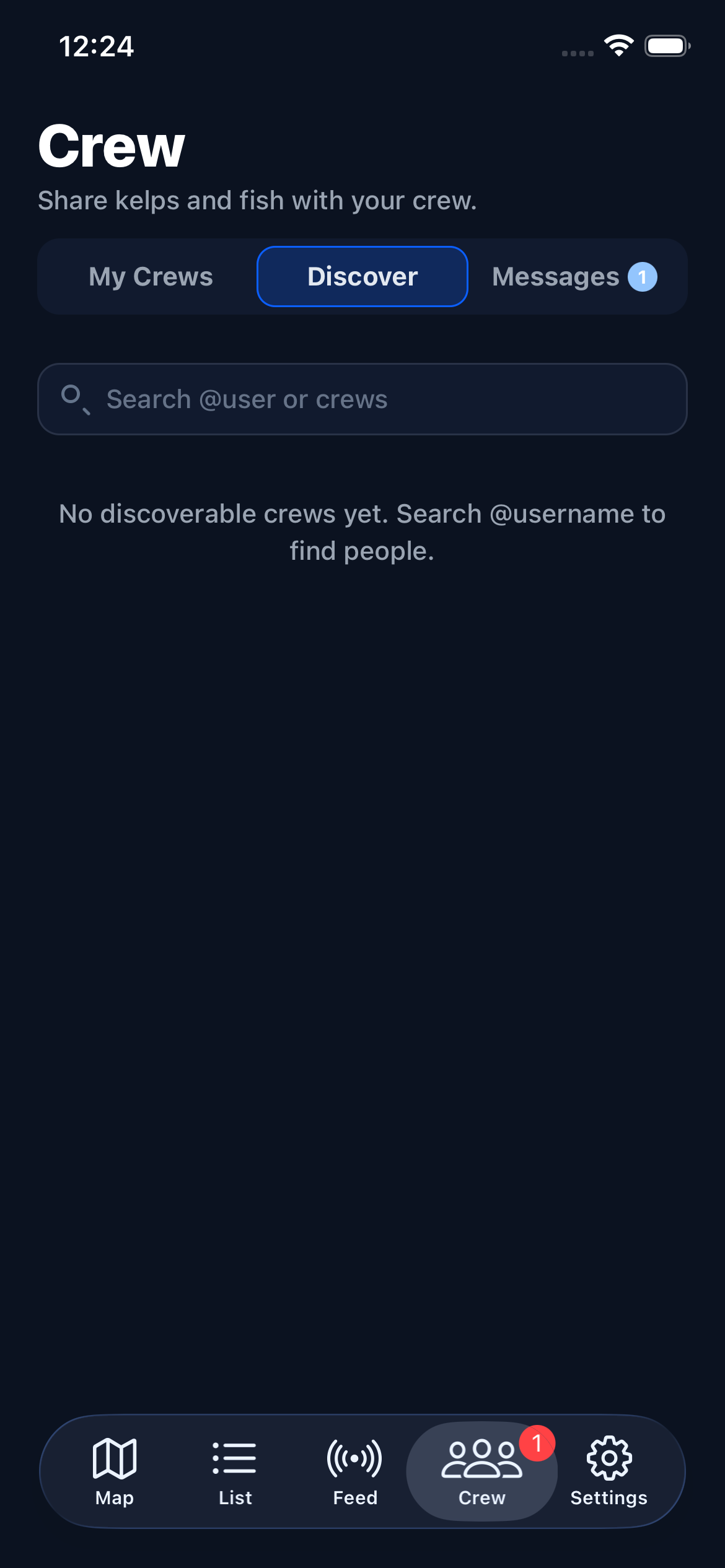
Discover lets you browse public crews and search for other anglers. Type a crew name to search, or prefix your query with @ to find a specific user (e.g. @captain_mike).
Public crews marked as "discoverable" by their owner appear here. Tap a crew card to preview it before joining — the preview shows the crew description, member count, scope, sample members (if the owner allows it), and recent reports.
Tap "Join" to join immediately, or "Request to Join" if the crew requires approval. When approval is required, the owner or an admin will review your request before you gain access. You can include an optional message with your request.
Messages
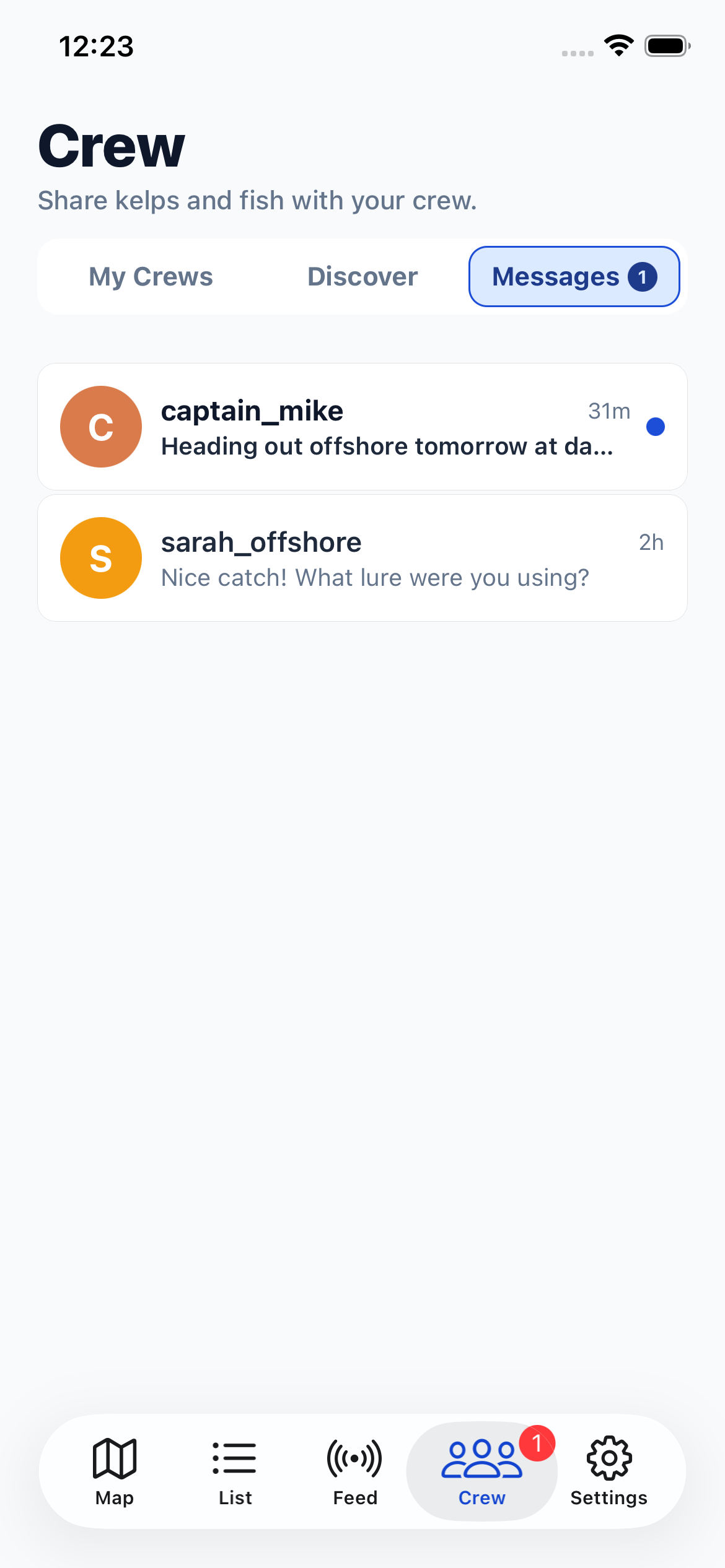
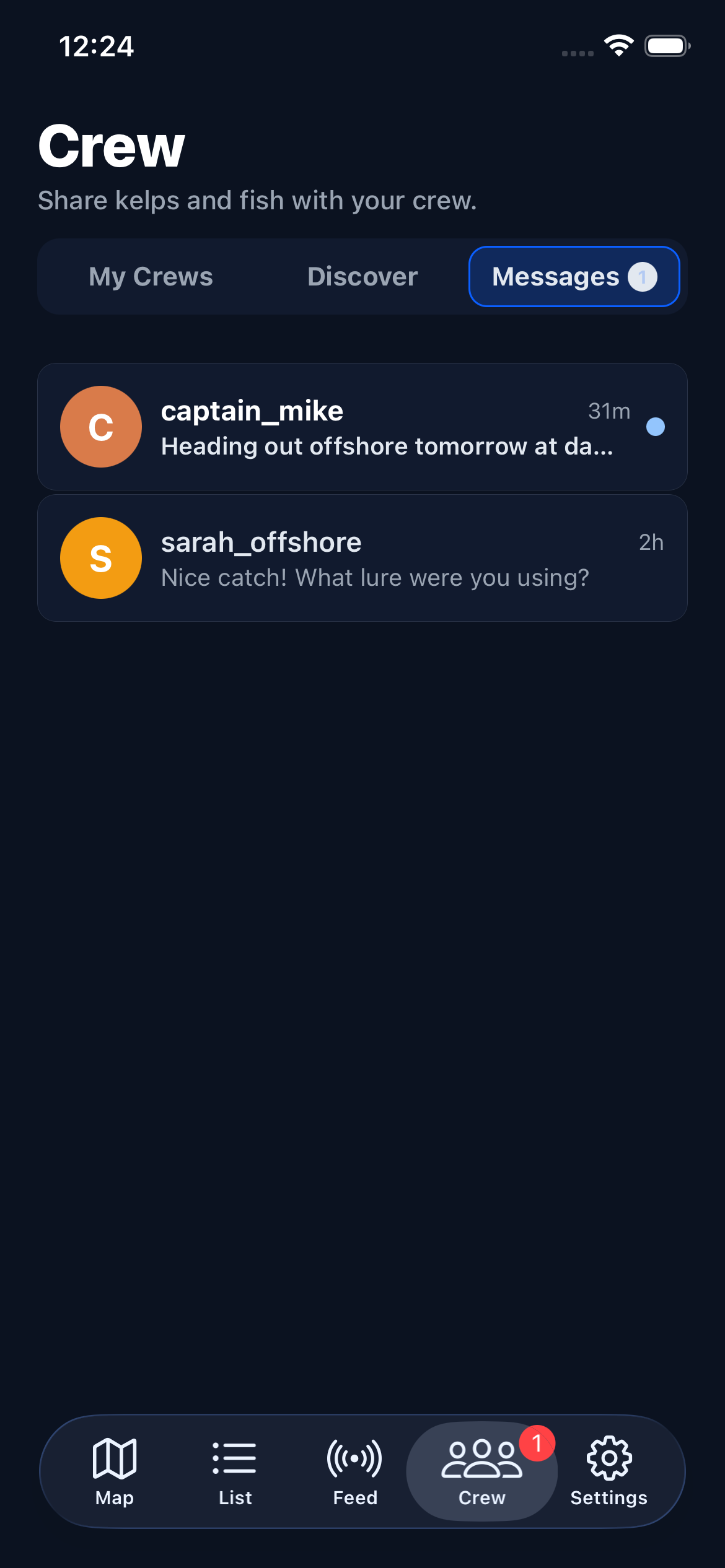
Messages shows your direct conversations with other anglers. Direct messaging requires a Pro subscription. Each row displays the other person's name, a preview of the last message, and a timestamp. Unread conversations are marked with a blue dot.
Tap a conversation to open it. Swipe left on a conversation for quick actions: mute notifications (for 1 hour, 1 day, 1 week, or permanently), delete the conversation, or block the user.
To start a new conversation, visit another angler's profile (from a crew member list or Discover search) and tap the Message button.
You can also report inappropriate content on profiles, messages, or reports by tapping the action menu and selecting "Report".