Detail Screen
Tap any kelp or fish item (from the map, list, or a report) to open its detail screen. This is where you manage everything about it: name, notes, location marks, sharing, and prediction settings.
Kelp and fish share the same detail screen, but kelp has additional features for drift prediction (windage and multiple marks).
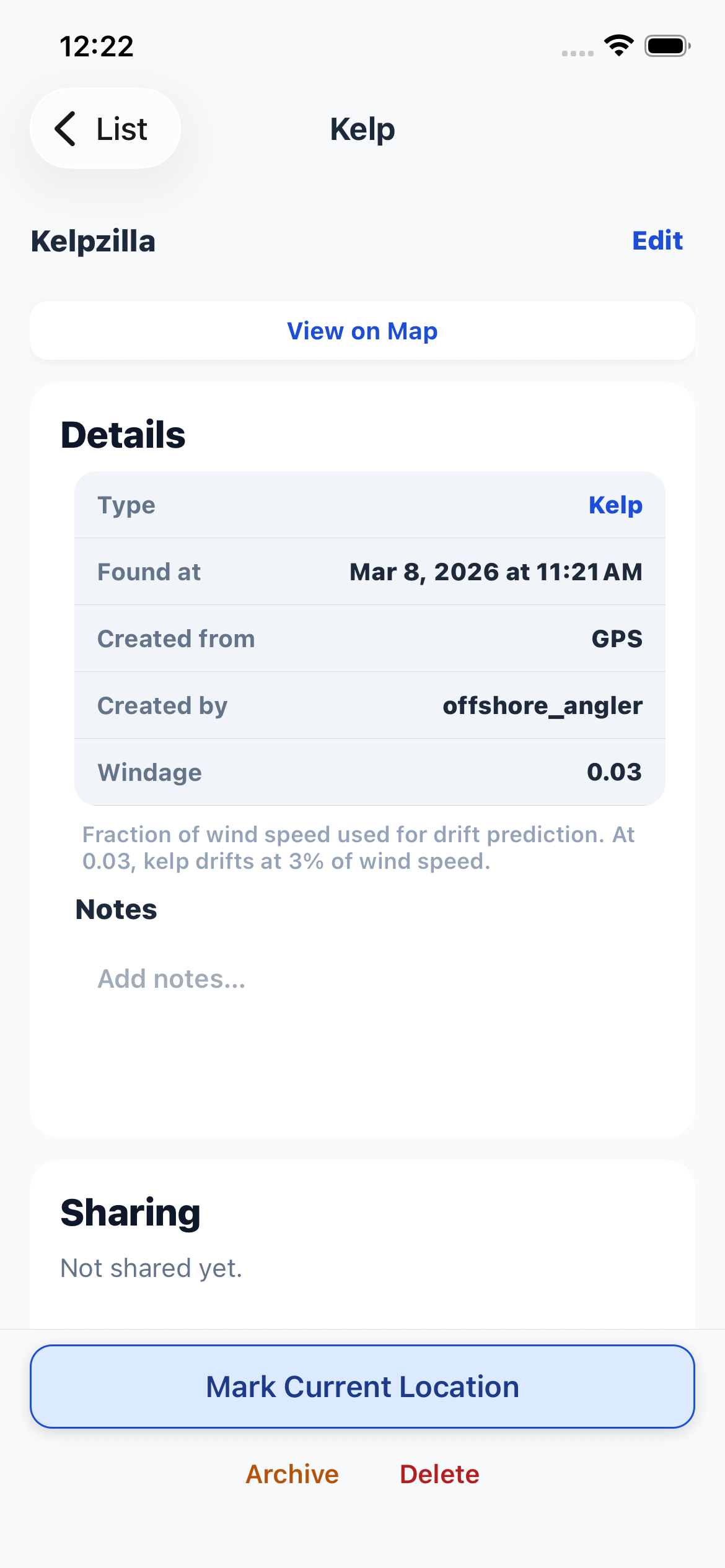
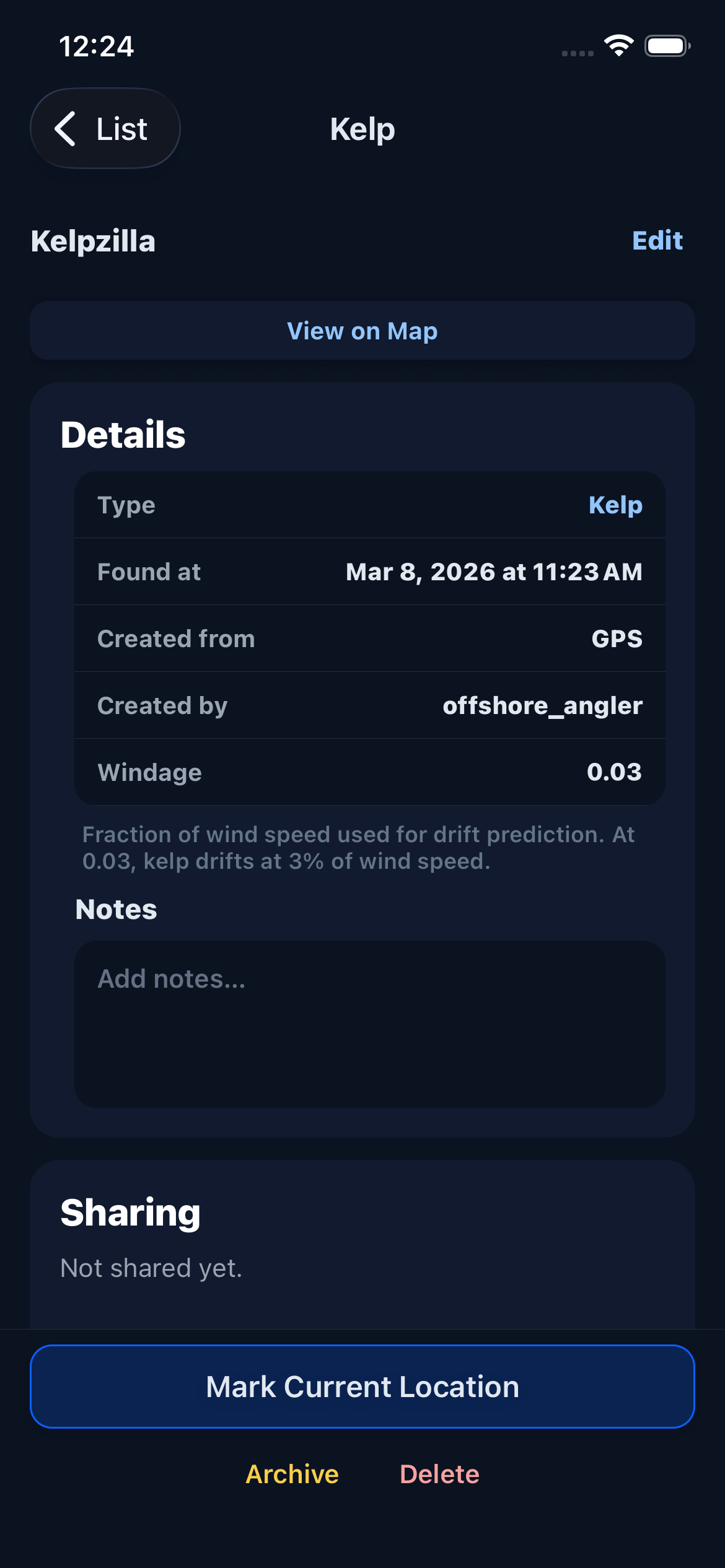
Name & Details
The name appears at the top. Tap it or tap "Edit" to rename it inline — type the new name and press Done.
The Details card shows:
- Type — Kelp or Fish. Tap to convert between types if you accidentally created the wrong one. A confirmation warns you about how this affects drift prediction.
- Found at — the date and time it was first created.
- Created from — whether the first mark was GPS or Manual.
- Created by — the username of the owner.
- Last mark (kelp) / Marked (fish) — coordinates of the most recent location mark. Tap to copy coordinates or open them in Apple Maps.
- Windage (kelp only) — the fraction of wind speed used for drift prediction. Studies indicate 0.03 to 0.04 are generally ideal — at 0.03, kelp drifts at 3% of wind speed. Tap the field to enter a custom value. The default is set in App Settings.
Notes — a free-text field below the details card. Tap to add notes about the kelp or fish (conditions, species, etc.).
Location Marks (Kelp)
The Location Marks section shows all GPS positions recorded for a kelp paddy, newest first. Each mark displays its timestamp, source (GPS or Manual), and coordinates.
You need at least 2 marks for drift prediction to work. The app uses the difference between marks to calculate the observed drift vector.
Adding marks:
Tap "Mark Current Location" at the bottom of the screen to record your phone's GPS position. You can also add marks from the map using the "+ Mark" button when the kelp is focused.
The mark limit depends on your subscription tier (10 on Free, 20 on Pro). The current count is shown at the top of the marks list. Older marks can be deleted individually using the Delete button on each mark row.
Fish support only a single location mark since they represent fixed positions. The Mark button is disabled after the first mark.
Sharing
The Sharing section shows which crews can see this kelp or fish.
If you own it, you can:
- Share to crew — tap to open the crew picker and select a crew to share with. The kelp or fish (and all its marks) become visible to everyone in that crew.
- Unshare — swipe left on a shared crew to remove sharing. A confirmation is required.
- Satellite share — packages the last two marks and notes into a compact text message you can send to friends on the water via iPhone satellite connectivity — no cellular or Wi-Fi needed. The recipient can import the mark directly instead of reading cryptic lat/lon numbers over the radio.
If someone shared a kelp or fish with you, the Sharing section shows which crew it came through. Tap the crew name to view crew details.
If you have default sharing crews configured in App Settings, new kelp and fish are automatically shared to those crews.
Archive & Delete
The action bar at the bottom has two buttons:
Archive — moves the item to your archived list. Archived kelp and fish don't appear on the map or in the active list, but they're not deleted. Tap "Unarchive" to restore them. This is useful for keeping old marks for reference without cluttering your active view.
Auto-archive (configurable in App Settings) automatically archives kelp or fish that haven't been re-marked within a set number of days.
Delete — permanently removes the kelp or fish and all its location marks from your device. A confirmation dialog appears first. Deleted items cannot be recovered.
If you created a new kelp or fish but navigate back without adding any marks, it is automatically cleaned up.