Feed Overview
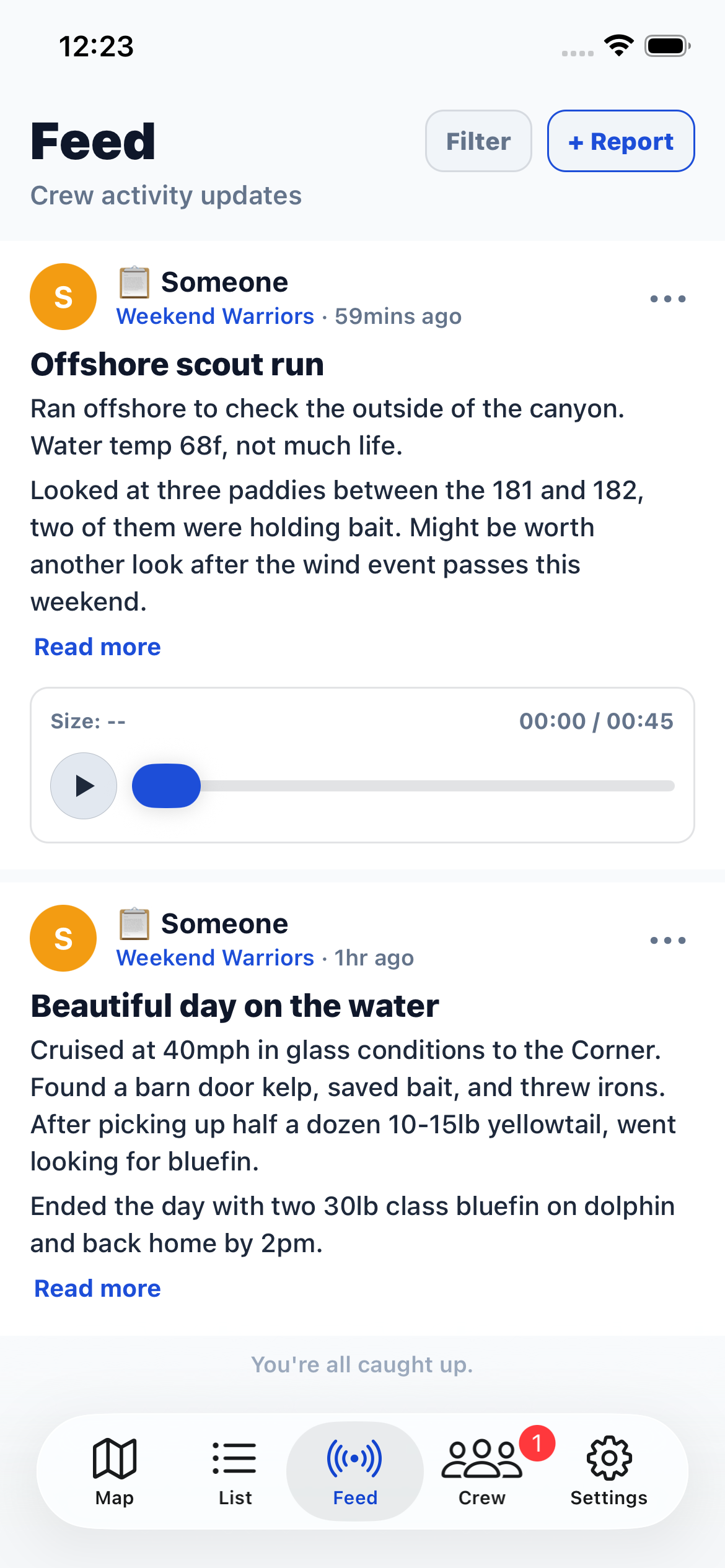
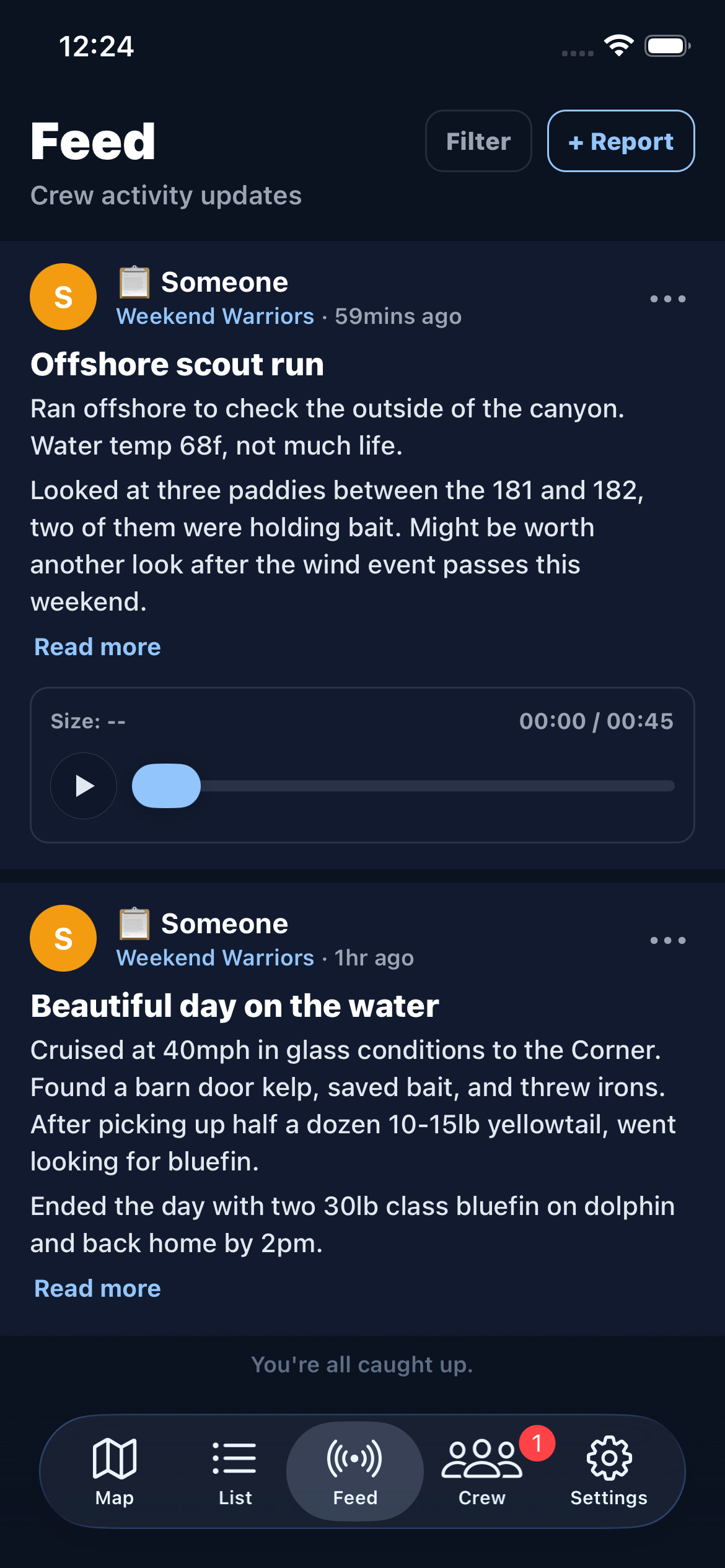
The Feed tab shows reports and activity from all crews you belong to. Each report card shows the headline, a text preview, the author, and any photos. Tap to read the full report, view photos, or listen to the voice memo.
Activity items (shared marks, member joins) also appear in the feed alongside reports.
Filtering
Tap the filter button at the top of the feed to narrow what you see. You can filter by:
- Item type — show all items, only reports, or only activity (shared marks, member events).
- Crew — show items from all crews or only specific ones.
When a filter is active, a label shows the current selection. Tap "Reset" to return to the default (all items, all crews).
Reactions
You can react to reports from other crew members with a thumbs-up. Tap the thumbs-up button on any report card or inside the report detail screen to like it. Tap again to remove your reaction.
The reaction count appears next to the button. Tap the count to see who reacted.
Report Detail
Tap a report card to open the full report. The detail screen shows:
- Headline and body text with full markdown formatting (headings, bold, italic, links, lists, code blocks)
- Photos — swipe through a gallery of up to 10 images. Long-press a photo to copy or save it.
- Voice memo — play/pause button with a timeline slider and duration display.
- Referenced marks — kelp and fish marks linked to the report. Tap "Map" to see them all on the map.
- Reactions — thumbs-up count and likers list.
From the action menu (top-right), you can edit or delete your own reports. On someone else's report, you can report inappropriate content.
Feed Notifications
Each crew has a per-crew notification preference that controls how you're notified about new feed activity. You can set this from the crew detail screen:
- All — receive a push notification for every new report or activity item (default).
- None — no push notifications for this crew's feed.