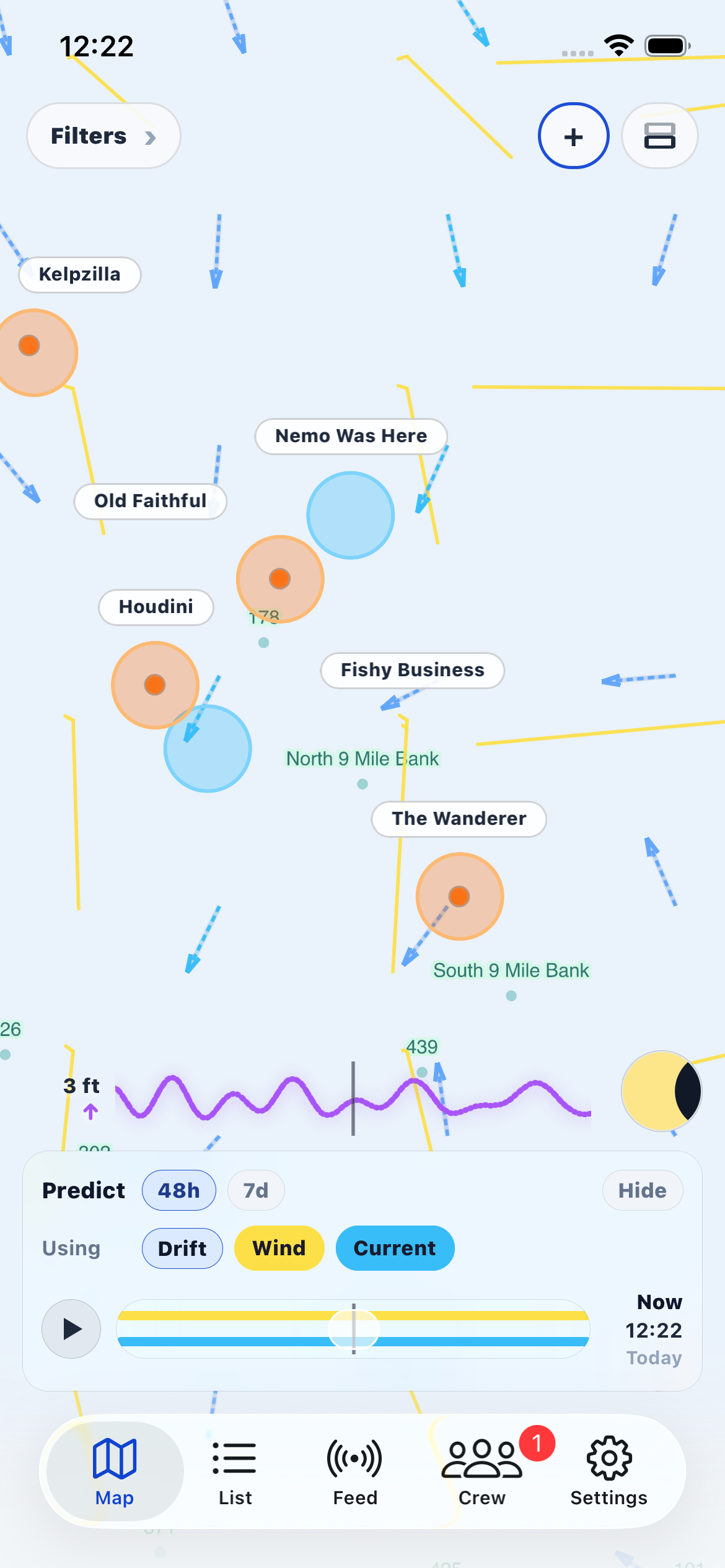
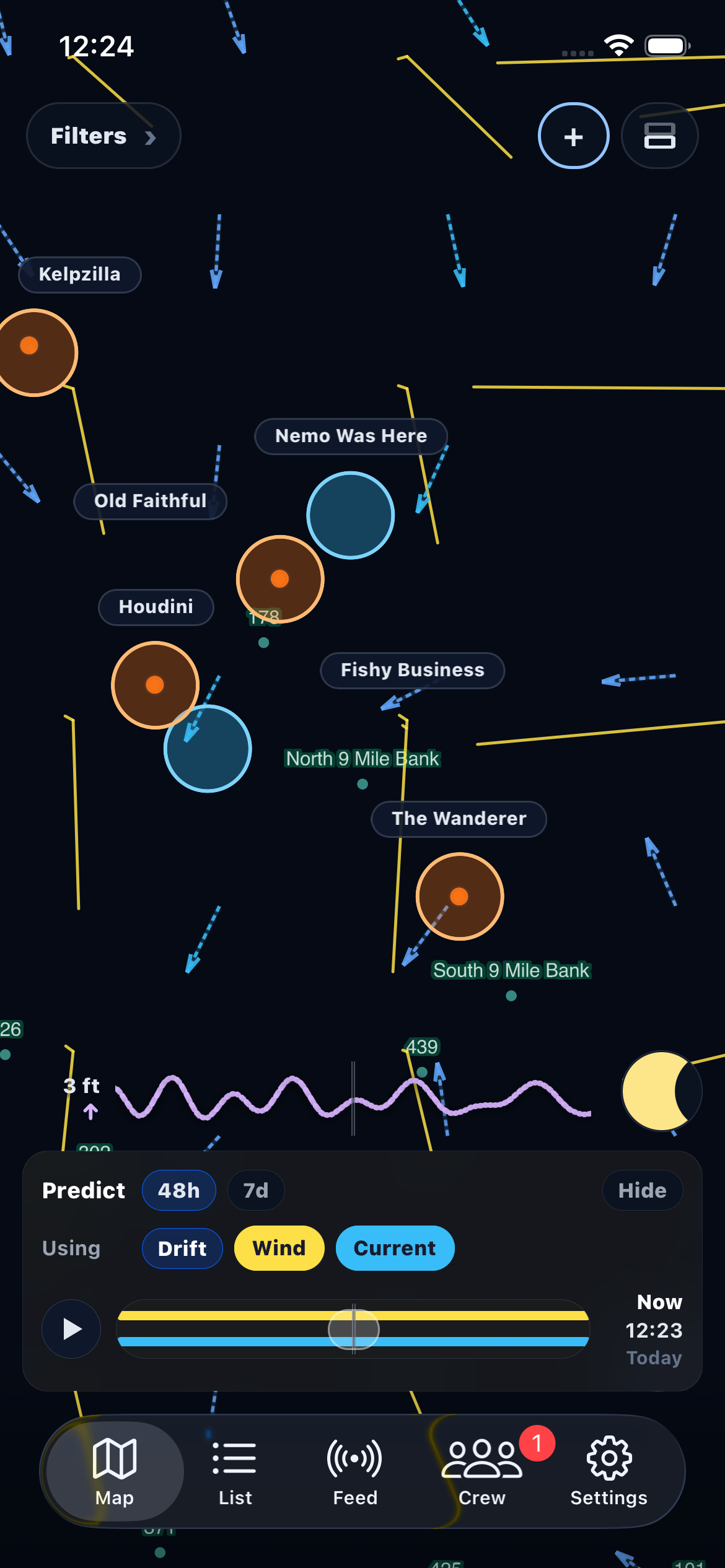
Map Overview
The Map tab is your primary navigation screen. It shows your kelp and fish marks on an offline chart with bathymetry, ocean data layers, and drift prediction vectors. All map data works offline once downloaded.
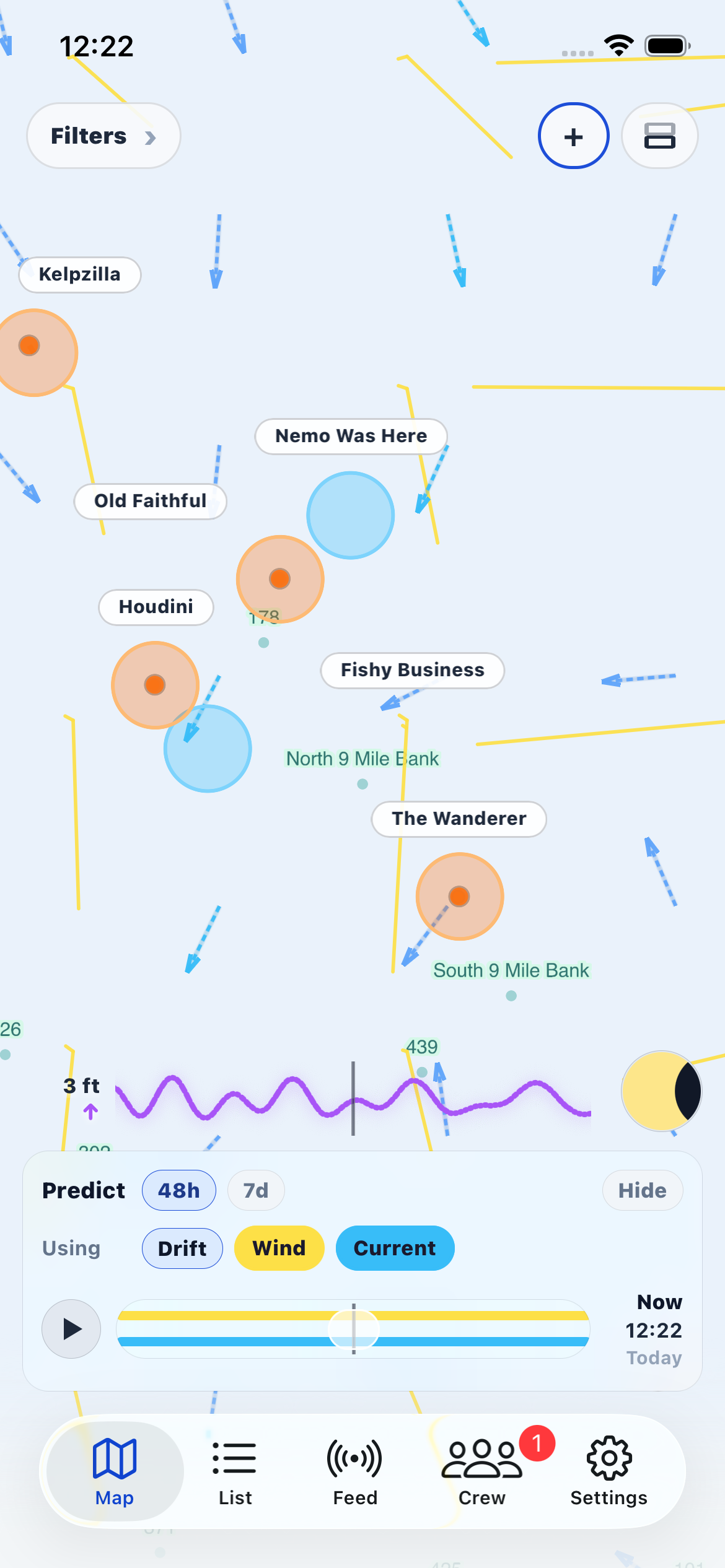
Top Controls
The top bar has controls for filtering, creating marks, and accessing map settings.
Filters — tap the Filters pill on the left to open the filter sheet. You can filter your marks by status (active, archived, all), type (kelp, fish, all), date range, and crew. When a filter is active, the pill shows the current filter label.
+ Button — tap + to create a new kelp or fish. An action sheet lets you choose "Track New Kelp" or "Track New Fish". This creates a new item and opens the mark pane so you can record its first GPS position.
+ Mark — when you're focused on a kelp paddy, the + button changes to "+ Mark" so you can add another position mark to the same kelp. This is how you build up drift history for a kelp paddy.
Map Settings — the stacked-layers icon opens Map Settings where you configure data layers, display options, downloads, and prediction parameters.
Focusing Kelp & Fish
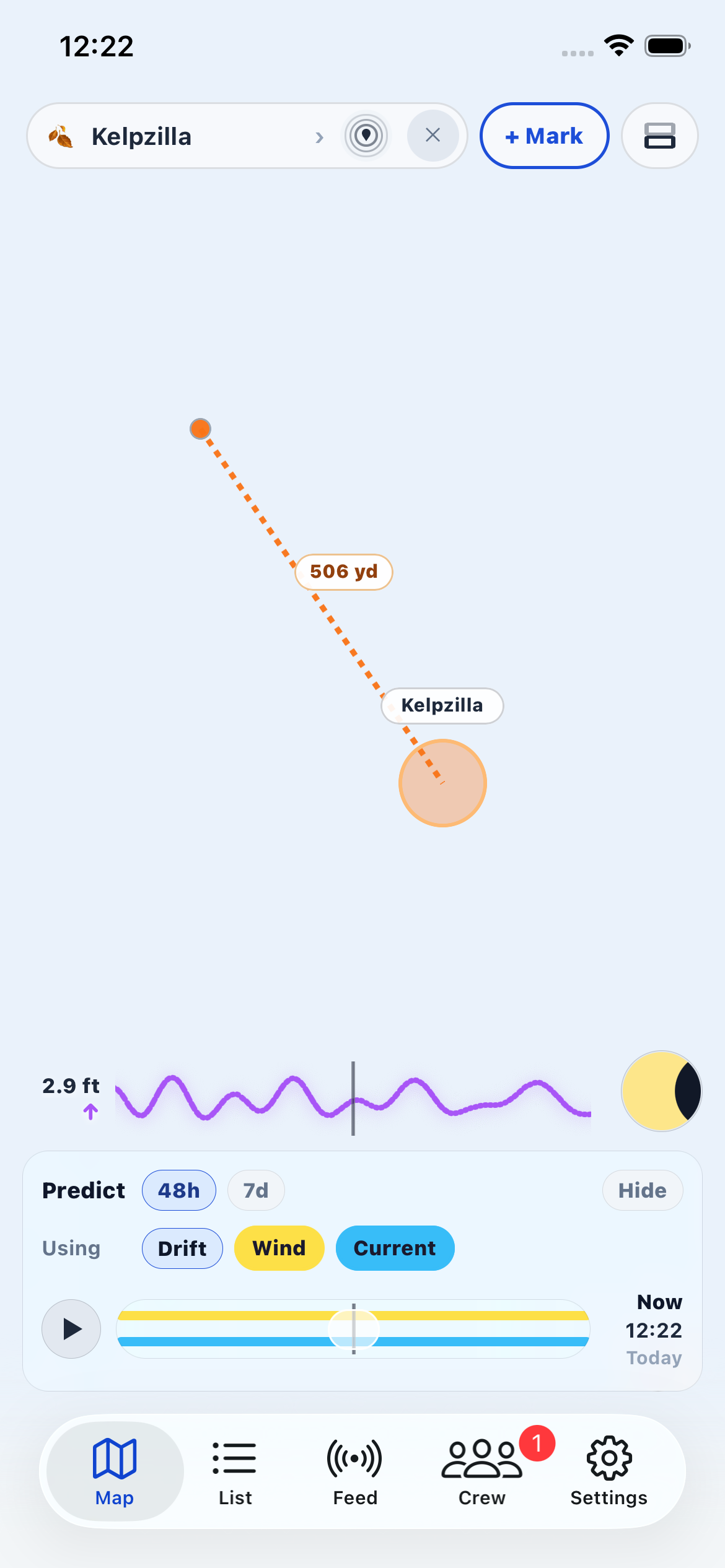
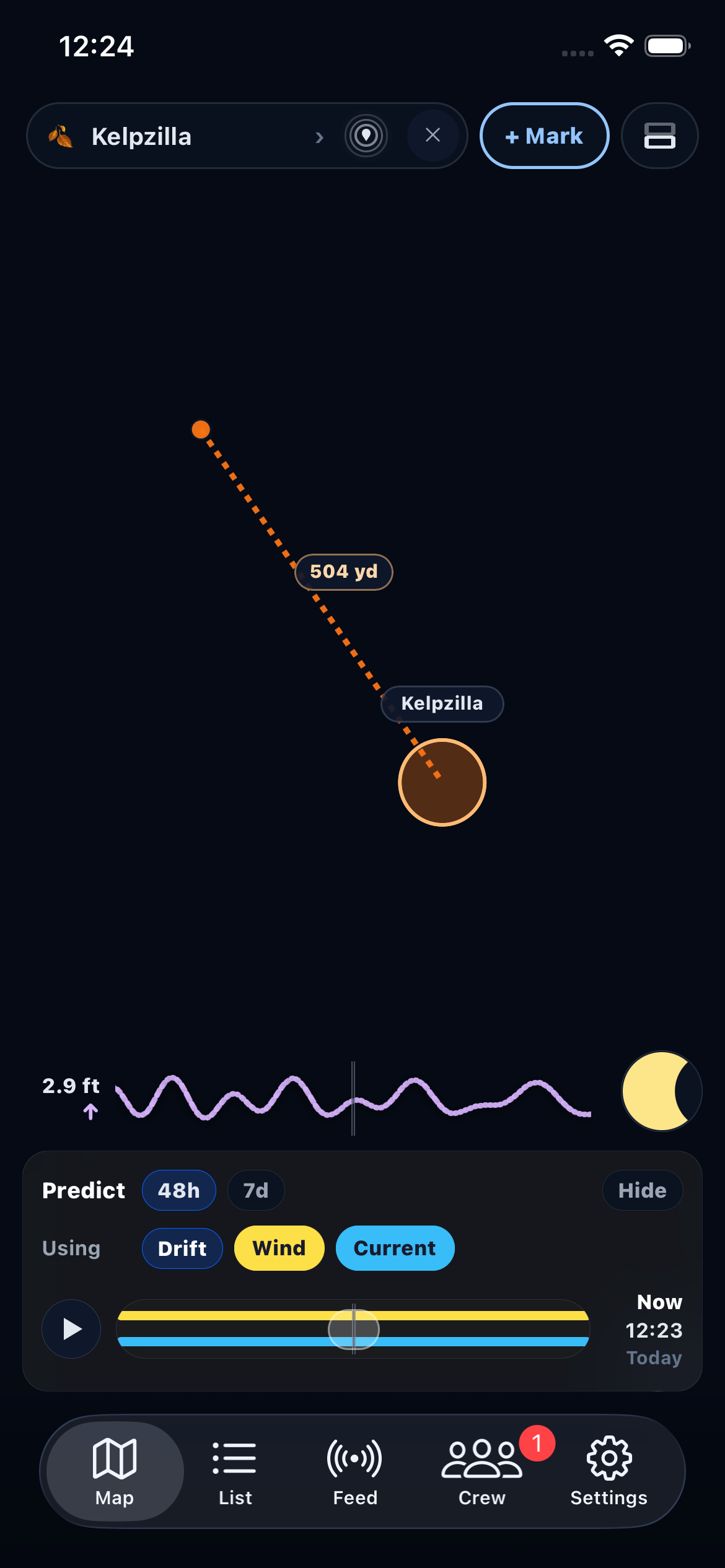
Tapping a kelp or fish mark on the map focuses it. A pill appears at the top-left showing the name with a 🍂 (kelp) or 🐟 (fish) icon.
- Name — tap the item name to open its full detail screen.
- Locate — re-centers the map on the focused item's current (or predicted) position.
- ✕ — closes the focus. This does not delete the item — it just deselects it on the map.
While focused on a kelp paddy, the + button becomes "+ Mark" to add another GPS position. Fish don't support multiple marks since they represent fixed locations.
Adding Marks
When you tap + or + Mark, the mark pane opens at the bottom-left of the screen.
GPS mode — tap "Mark Current Location" to record your phone's GPS position. The button shows "Marking..." while acquiring a fix. This is the best way to mark a kelp paddy — drift alongside it and tap Mark.
Manual mode — toggle the GPS/Manual switch to enter coordinates by hand. You can type latitude and longitude, or tap anywhere on the map to set the coordinates automatically. Then pick a date and time for the mark. Useful for marking a position from memory or from a friend's coordinates.
Name — set the name when creating a new kelp or fish. You can change it later from the detail screen.
Sharing — if you have default crews configured, a toggle lets you skip automatic sharing for this particular mark.
Predict Pane
The Predict dock sits at the bottom center of the map. Tap it to expand the full prediction controls.
48h / 7d tabs — switch between two forecast horizons. 48h uses the high-resolution HRRR wind model with 1-hour time steps. 7d uses the longer-range GFS model with 3-hour steps. Use 48h for detailed near-term predictions and 7d for planning ahead.
Vector toggles (Drift, Wind, Current) — the "Using" row shows which data sources feed the prediction. Tap each to toggle it on or off:
- Drift — your observed GPS drift vectors. Always available when a focused kelp has multiple marks.
- Wind — forecast wind vectors from NOAA. Shown as yellow NOAA-style barbs: long barbs represent 10 knots, short barbs 5 knots, capped at 30 knots. Calm winds appear as a small circle. Requires downloading the wind forecast pack.
- Current — ocean surface current data from NOAA WCOFS. Shown as arrow-headed lines whose color indicates speed: blue for slow currents, cyan for moderate, and purple for fast. Longer arrows mean stronger current. Requires downloading the currents pack.
Vectors that haven't been downloaded are grayed out. The prediction blends all active vectors together — observed drift transitions to forecast data over the drift handoff window (configurable in Map Settings > Predict).
Play / Pause — tap the play button (triangle icon) to animate the prediction forward through time. The map shows how marks are predicted to move hour by hour. Tap pause (double bar icon) to stop on a specific time step.
Timeline scrubber — drag the slider thumb left and right to scrub through the forecast. The track shows colored segments indicating wind coverage (one color) and current coverage (another color), so you can see where forecast data is available vs. where it's extrapolating.
A "NOW" marker on the timeline shows the current time. Tap the time display on the right to reset back to now.
Tide sparkline — if tides are loaded, a tiny tide curve overlays the timeline as a visual reference.
Right-Side Controls
The right edge of the map has a vertical stack of tool buttons. Each opens a pane or toggles an overlay.
Tides — shows a sparkline icon of the current tide level. Tap to open an infinitely scrollable tides calendar, which lists high and low tide times and heights at your current map center. The tides are computed from the EOT20 harmonic model, so they work at any point in the coverage area, not just at fixed tide stations.
Moon Phase — shows the current moon phase icon. Tap to open an infinitely scrollable calendar showing illumination percentage, waxing/waning status, and phase name for each day.
Legend — tap the info (i) button to see what the map colors and symbols mean. The legend shows:
- Bathymetry depth gradient (light = shallow, dark = deep) and contour line weights
- Sea surface temperature or chlorophyll color scale (whichever ocean layer is active)
- Surface current speed scale with blue lines
- Wind speed scale with yellow barbs
Measurement Tool — tap the ruler icon to enter measurement mode. Tap points on the map to draw lines and measure distances. The pane shows point count, total distance, and coordinates of the selected point. You can move points, delete individual points, or clear all.
Scale Bar — a non-interactive reference bar in the bottom-right corner showing the current map scale in your chosen units (nautical miles, miles, or kilometers).
Info Pane
The Info button (bottom-right, above Legend) opens the location inspector. A red pin appears at the center of the map, and a floating pane shows data sampled at that point. Pan the map to move the pin and update the readings.
The info pane can display:
- Coordinates — latitude and longitude in your chosen format (DD, DMS, or DDM — configurable in App Settings).
- Depth — ocean depth at the pin location, sampled from the bathymetry layer. An "approximately" prefix indicates the value is interpolated from nearby contours rather than exact.
- Ocean layers — the value of any active color layer (chlorophyll concentration, sea surface temperature) at the pin.
- Wind — wind speed and direction from the loaded forecast at the current time step.
- Current — ocean surface current speed and direction.
- Swell — primary swell height, period, and direction. If a secondary swell component is present, it's shown below the primary.
Only data layers that are downloaded and loaded appear in the pane. Tap "Hide" or open another tool to close the inspector.
Tide Graph
When the tide graph is enabled (Map Settings > Display) and the Predict pane is expanded, a mini tide chart appears above the timeline. It shows the tide height curve, the current tide direction (rising, falling, or slack with an arrow indicator), and the height value at the current forecast time.
The vertical line in the center of the graph marks the selected forecast time — the same time shown in the bottom-right corner of the Predict pane. As you scrub the timeline, the line stays centered and the tide curve scrolls beneath it, making it easy to see how tidal flow correlates with your drift predictions.